Talk to Me, COSMOS! Your COSMOS AI Assistant Has Entered the Chat
It seems like only a few years ago if you talked about AI people would think fondly about Ask Jeeves or SmarterChild or the conversation would veer into debates around Skynet. Our AI isn’t the stuff of movies just yet and we already safely passed the date Skynet became self-aware (August 29, 1997, in case you were wondering), but AI is a part of our lives.
Since 2022, AI has been the topic of daily conversations across organizations and industries and has been integrated into many workflows. AI is a tool and you want it to work well with the others in your toolbox. That’s why we’re sharing how to use AI in COSMOS.
COSMOS 7.2 introduces an MCP Server and an in-app chatbot to control and monitor your targets. For the first time, you can have a natural language conversation with your hardware. Ask "what does the temperature sensor say?" and get an answer. Say "run a command on my machine" and watch the command go out. Point your favorite LLM at your ground system and let it read telemetry, send commands, and run scripts — all using your existing permissions.
This guide walks through the two ways to do it: the in-app AI Assistant built right into COSMOS, and connecting external tools like Claude Code and Codex to the COSMOS MCP Server.
In-App Chatbot
Getting Started with the COSMOS AI Assistant
Open the AI Assistant from the AI button in the top toolbar. The first time, it isn't connected to anything—COSMOS doesn't ship with an AI provider, so nothing leaves your system until you configure one.
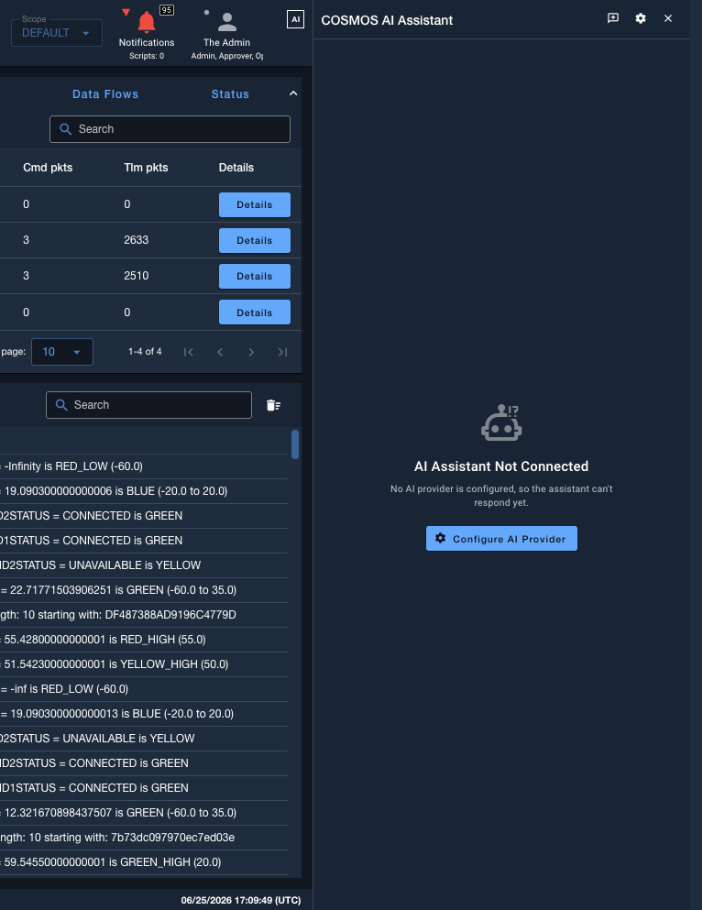
Click Configure AI Provider and pick the provider and model you want. Out of the box, COSMOS supports OpenAI, Anthropic, Gemini, and any OpenAI-compatible endpoint (like a self-hosted option). Choose a model from your provider, and drop in your API key—it's stored in COSMOS Secrets and never sent back to the browser—and you're connected.
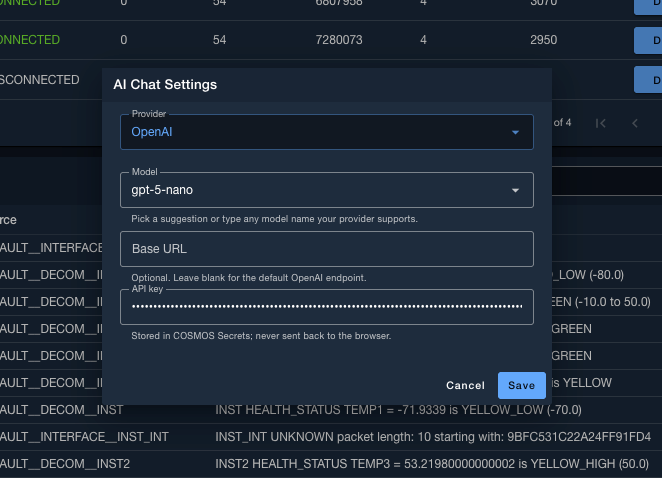
That's it. The AI assistant is now wired into your COSMOS system.
Run Commands and Analyze Telemetry
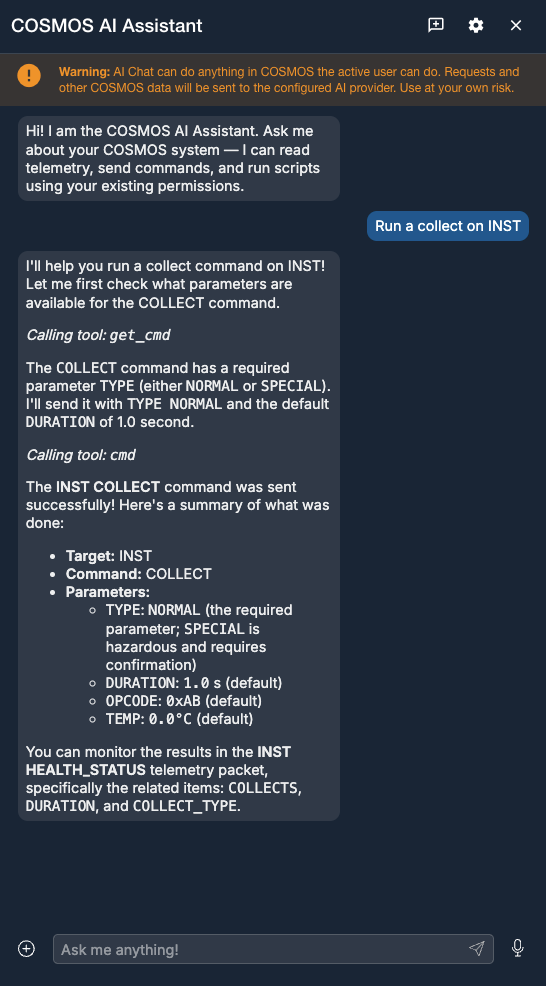
Once connected, talk to your hardware like you would a human. Ask it to send a command and it figures out the parameters for you.
Here we say "Run a collect on INST." The assistant checks the command definition with get_cmd, sees that COLLECT requires a TYPE parameter, fills in the safe defaults (TYPE NORMAL, DURATION 1.0), and sends it with cmd. Afterward it tells you exactly what it sent and where to watch the results.
Telemetry analysis works the same way. Ask "What's the current temperature sensor say on INST?" and the assistant discovers the relevant packets and items, pulls the values, and interprets them against their limits—explaining that TEMP1 is BLUE while the rest are GREEN.
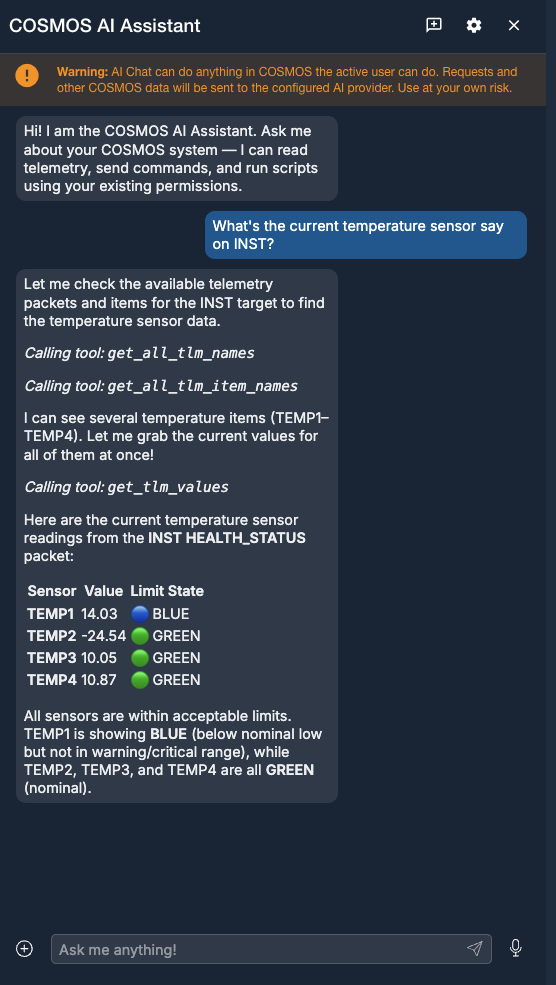
You're not memorizing packet names or item mnemonics anymore. You ask a question; the assistant navigates your system's definition for you.
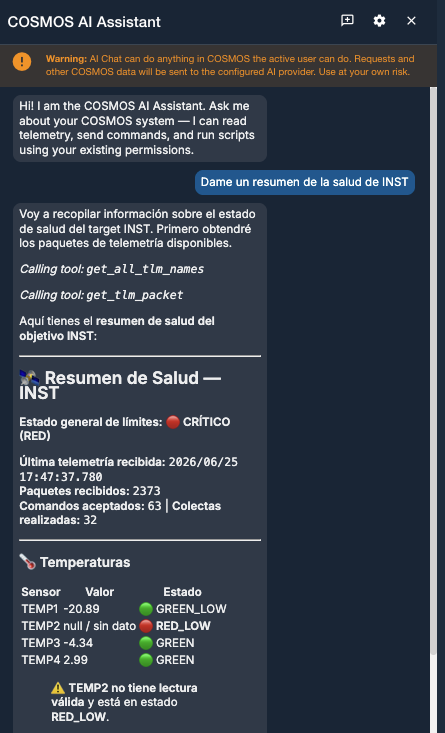
Have a global team? Talk to the AI Assistant in any major language.
Interact with Voice—Have a Conversation with COSMOS and Your Hardware
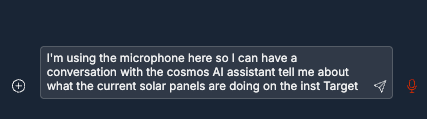
Hands full? Tap the microphone and just talk. Here the operator says aloud: "I'm using the microphone here so I can have a conversation with the COSMOS AI assistant—tell me about what the current solar panels are doing on the INST target."
The assistant gathers the MECH telemetry packet, lays out every solar panel's angle and status, flags SLRPNL1 as YELLOW LOW at the edge of its range, and summarizes the key takeaways—spoken and on screen.
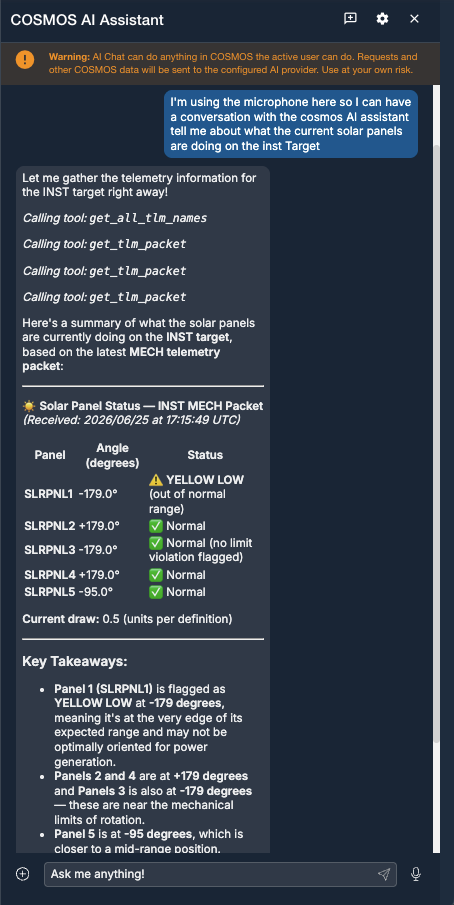
This is what "a conversation with your hardware" really means: you ask out loud, COSMOS reads its own telemetry, and answers.
Upload Images or Files
The assistant is multimodal. Take any COSMOS screen—here the INST Health and Status screen is uploaded:
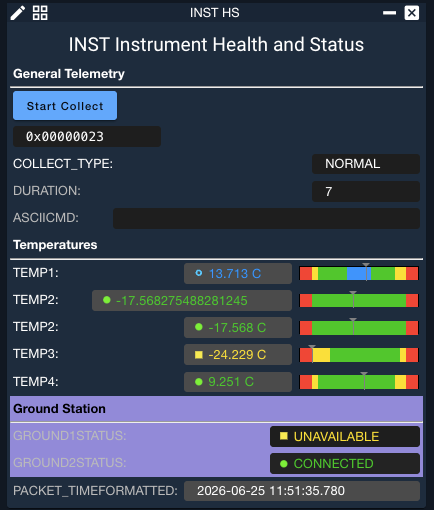
—and upload it with a question like "Take a look at the temperatures in this screenshot and analyze it against the current temperatures in INST." The assistant fetches the current temperatures and compares them with the image results.
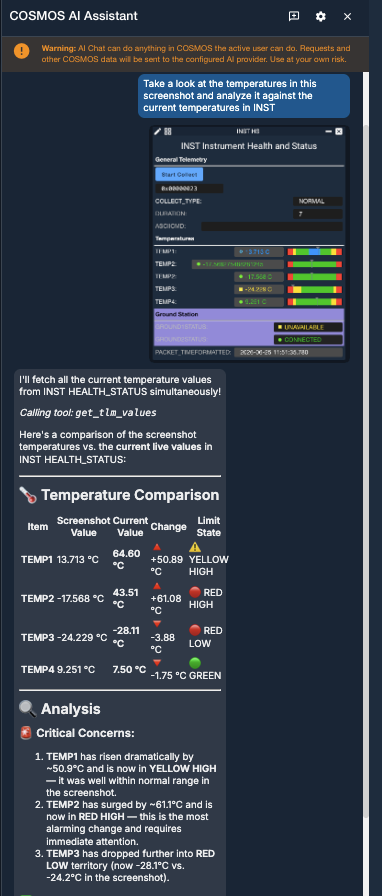
Upload telemetry plots, anomaly screenshots, or config files and let the assistant reason over them in context.
Connect the MCP Server to Claude Code
The in-app chatbot is one front end. The real power is the COSMOS MCP Server: any MCP-capable tool—Claude Code, Codex, and others—can connect to it and get the same command/telemetry/script access, governed by the same Keycloak authentication and role-based permissions.
Here Claude Code is connected to the COSMOS MCP Server. Asked for the overall state of INST, it queries the live system, confirms the target is connected with a healthy link, walks the telemetry, and reports back—right from the terminal.
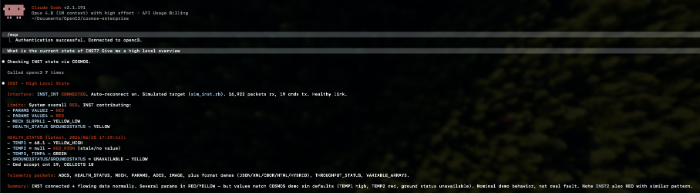
Now your AI coding agent can drive your ground system: write a script, run it, read the resulting telemetry, and iterate—without leaving your editor.
COSMOS AI Assistant FAQs
1. What commands can it run and what telemetry can it see?
Exactly what you can. The AI acts as the logged-in user—the request carries your Keycloak token, so your role-based permissions apply unchanged. If your user can't send a command or read a packet, neither can the assistant.
2. How will this help me?
It collapses the gap between intent and action. New operators don't have to memorize packet and item names; experienced ones skip the clicks. You can investigate anomalies by asking questions, send commands conversationally, analyze screenshots, and let external agents like Claude Code automate workflows against your system.
3. How do I disable / hide the in-app Chatbot?
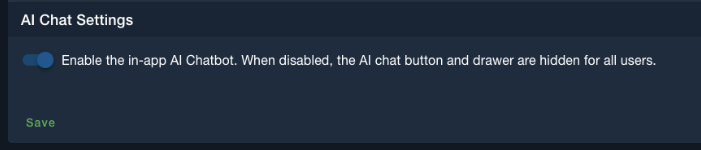
To disable the AI Chatbot in COSMOS, go to Admin Console → Settings, disable the in-app Chatbot. When disabled, the AI chat button and drawer are hidden for all users. (The setting is ai_chat; if it's never been set, the chatbot defaults to enabled.)
4. How do I disable the MCP Server?
Set OPENC3_MCP_DISABLED=true in your .env file and restart. This stops the MCP Server microservice from launching, so no MCP endpoint is served at all. Note this is separate from the in-app Chatbot toggle in FAQ 3—disable the Chatbot via Admin → Settings, disable the MCP Server (and therefore external clients like Claude Code) via OPENC3_MCP_DISABLED.
For more details on the MCP Server see the OpenC3 MCP Server documentation.
A note on data and safety: The in-app assistant warns up front—AI Chat can do anything in COSMOS the active user can do. Requests and other COSMOS data will be sent to the configured AI provider. Choose your provider accordingly, and use a self-hosted or OpenAI-compatible endpoint if your data can't leave your environment.
Stay up to date on all COSMOS and OpenC3 news by subscribing to our newsletter!